
Try It in 2: Quick Tech Tips for Teachers

Our team has rounded up our favorite “Try it in 2” tricks! These are simple tech tips anyone can learn in under two minutes and start using right away. Perfect for the start of the school year, these quick wins save time, keep students engaged, and make your workflow smoother. Try a new one each day for 3 weeks!
Undo That Chrome Oops
Accidentally close out of a Chrome tab? No worries. Ctrl + Shift + T brings it right back like magic. And if a student happens to close a tab a little too quickly during class…well, let’s just say this shortcut might come in handy.
Consider it your classroom’s instant “undo” button!

Smart Chips in Docs
Type “@” to insert people, files, dates, or checklists. For quick menus (group roles, assignment status, progress), type “@dropdown.”
Your lesson plans just went from “meh” to menu-magic!

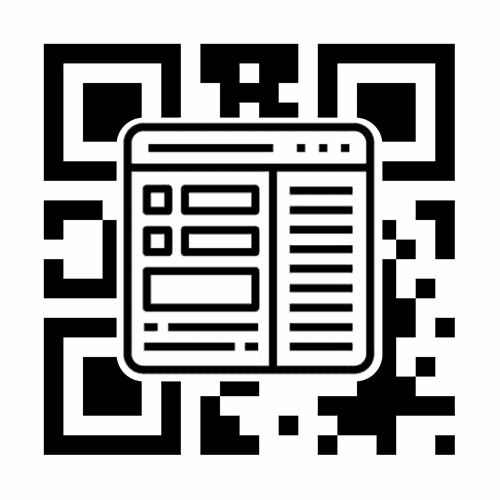
Share Any Link with a QR Code
Want students on a site instantly with no typing or typos? Right-click anywhere on a webpage in Chrome and select “Create QR code for this page.” Project it or download it. Students scan with any camera and they’re in.
It’s basically teleportation for links!
Picture-in-Picture for YouTube
Need to follow along with a YouTube tutorial while typing in Google Docs? Double right-click the video → Picture in Picture. The floating window follows you around while you work.
Multitasking without the meltdown!

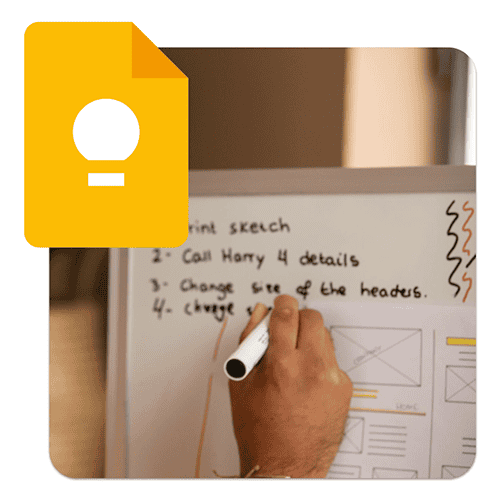
Google Keep Image Text Grab
Need something typed up so you can reformat it? Upload a photo into Google Keep, tap the three dots, and choose Grab image text. Boom, it’s editable and ready to open as a Google Doc.
Goodbye typing marathons, hello copy-and-paste paradise.
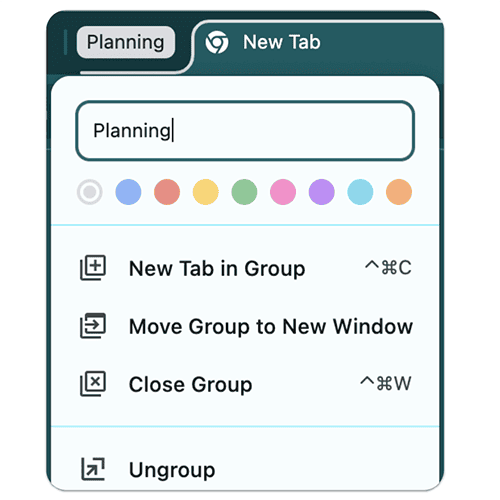
Chrome Tab Groups
Juggling resources for multiple classes? Chrome Tab Groups = instant organization.
Right-click your tabs → “Add tab to new group” → give it a name + color.
Finally, your browser looks less like chaos and more like calm.
Undo Send in Gmail
Accidentally hit send? No worries. Go to Settings → See all settings → Undo Send. Set it to 30 seconds and save yourself from “Oops, forgot the attachment” moments.
Your inbox just breathed a sigh of relief.

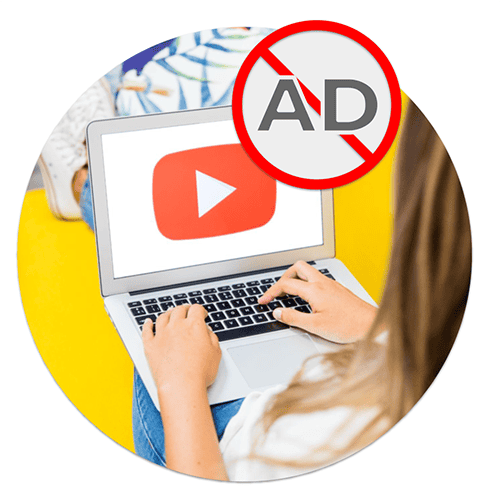
Ad-Free YouTube Trick
Showing a clip in class and don’t want random ads? Add a hyphen between the “t” and “u” in the YouTube URL. Instantly loads in a clutter-free player.
Because no one came to class for cat food commercials.
Tabs in Google Docs
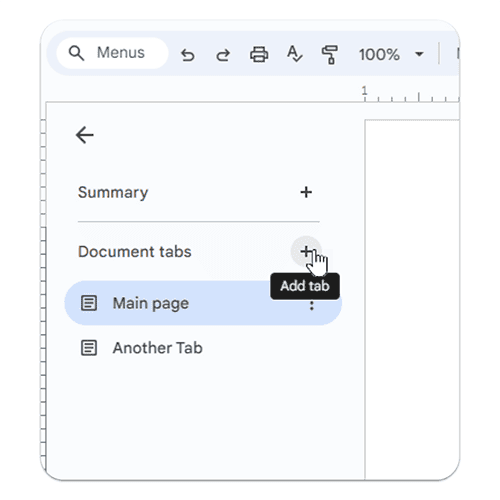
Tired of endless scrolling? Use Tabs to break content into clickable sections – all inside one doc. Open a doc and you’ll see one tab is automatically created and named after your document. Click the 3 dots next to the tab to add a subtab, delete, duplicate, or rename the tab, and some other hidden gems!
Think of it as Marie Kondo for your Google Docs.
Schedule Send in Gmail
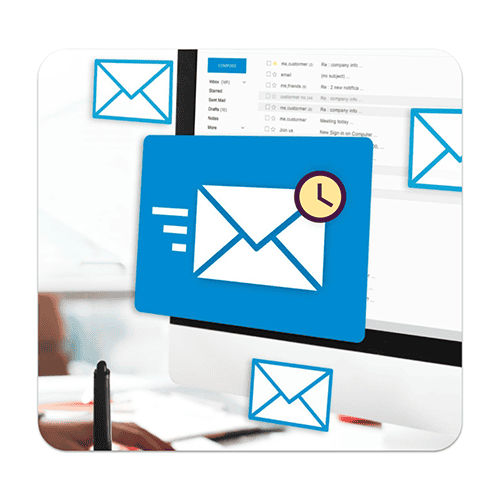
Write now, send later. Click the arrow next to Gmail’s blue Send button → choose Schedule send.
Your future self will thank you (and so will parents who check at night).
Adobe Express Guided Activities
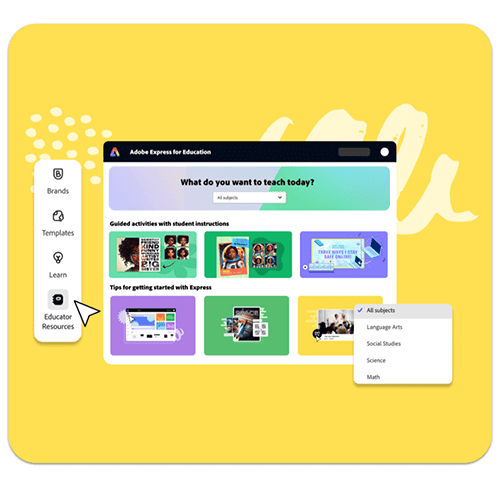
Students can create with ease using Guided Activities. Each includes a template + built-in tutorial. Assign through Adobe Express Classrooms or your LMS. Find them under Learn → Guided Activities.
It’s like creativity with training wheels! Students can’t help but shine.
Pin Tabs
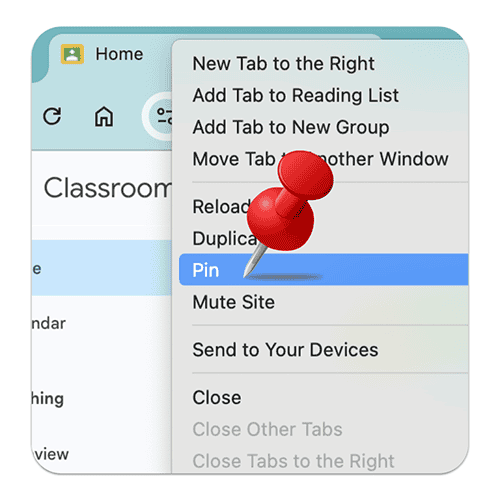
Right-click a tab → select Pin to lock down your most-used sites (Classroom, Gmail, gradebook). Bonus: Chrome reopens them next time if pinned last.
It’s like giving your favorite sites VIP seating in your browser.
AI Chatbot Prompt Magic
Prompt your chatbot with: “Ask me questions one at a time until you know enough to proceed.” You’ll be shocked at how much better the results get.
It’s the Socratic method: AI edition.
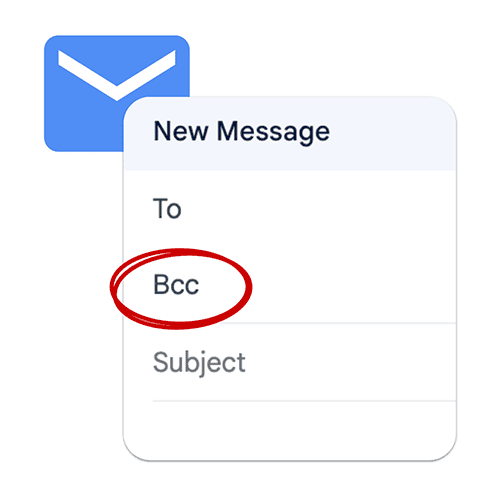
Always BCC in Gmail
Sending a group message to staff or students? Put everyone in BCC to prevent a “Reply All” storm.
Protect your inbox from chaos. It deserves peace too.
Teach from the Back of the Room
Couldn’t see what students were doing when teaching from the front? Grab a wireless keyboard (or connect to a smartboard via Bluetooth) and teach from the back. Suddenly you’ve got a clear view of who’s stuck, who’s distracted, and when you need to re-explain.
It’s classroom management meets tech hack, and it works wonders.

Which one will you try first?
Try a few and let us know how it’s going in the comments below. We’re here to help make you and your workflow as efficient as possible!

2 Comments
Leave a Comment
What Clients are Saying...


This was a great read- full of awesome-ness! Thank you!
Fantastic tips! Thank you for sharing. 😃